Install Plugin
Installation Steps
Installation Steps
CLI
For a shorter method of installing the plugin, follow the steps below1
Terminal/Powershell
Open a Terminal/Powershell in your Prism plugin directory
2
Clone Repository
git clone https://github.com/fraktlfx/prism-discord.git DiscordManual
For a more manual method of installation, follow the steps below1
Download
Download the plugin release package from the repository
2
Unzip
Unzip the folder (if needed)
3
Rename (Optional)
The top level folder must be called: Discord. Rename the folder if it’s needed.
4
Move
Move the plugin to the Prism plugins directory
5
Reload Prism
Restart/Reload Prism and the plugin should automatically appear in the plugin list enabled
Discord
Discord Prism App
Discord Prism App
1
Create your Discord app
Go the Applications page on Discord (You will need to make sure that you are logged in).
On the top of the page, you should select ‘New Application’ in the top right section.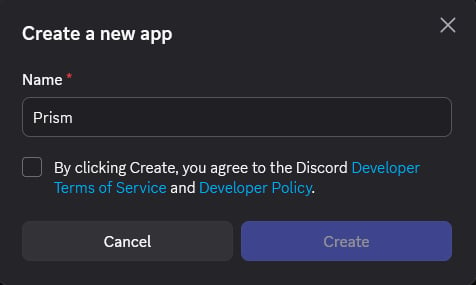
On the top of the page, you should select ‘New Application’ in the top right section.
2
Customize the App Icon
Once your app is created, you should arrive at the ‘General Information’ page where you can set multiple options like the icon, name, description, etc.
Go ahead and upload the Prism icon (or any icon you want).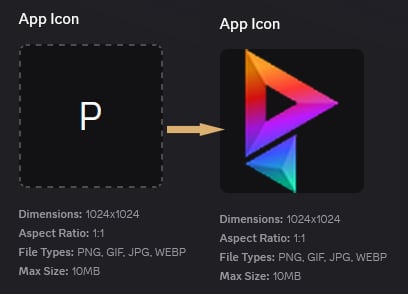
Go ahead and upload the Prism icon (or any icon you want).
3
Assign Scopes/Permissions
Navigate to the
Scopes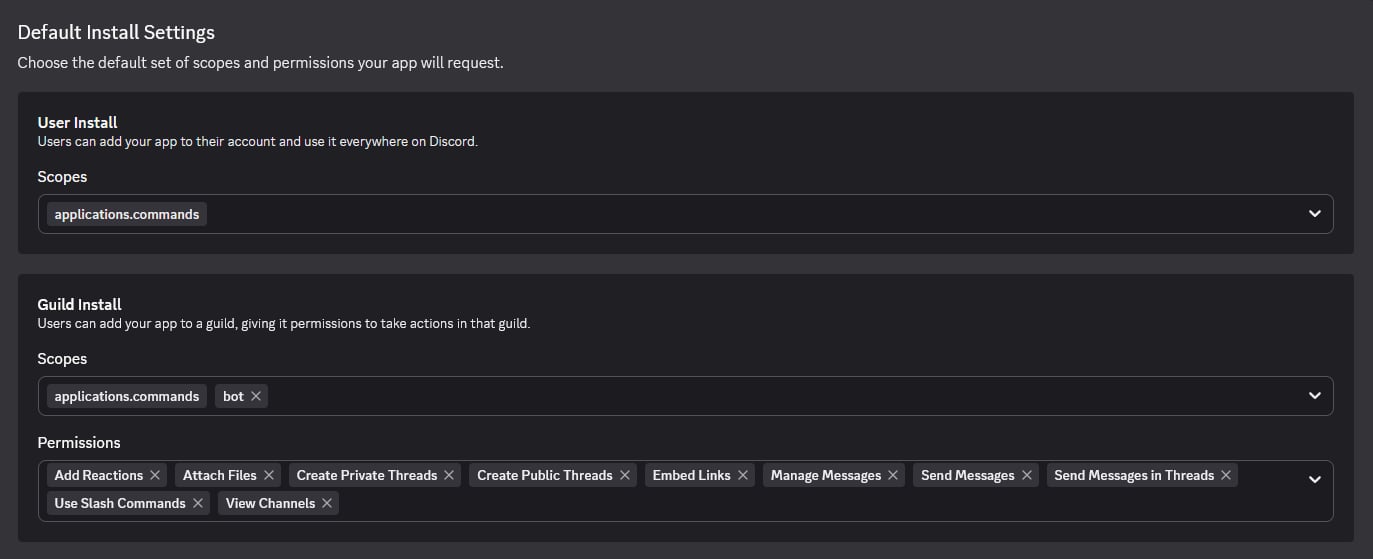
Installation page and assign the following Permissions/Scopes to the following categories.User Installapplications.commands
Scopes
applications.commandsbot
Add ReactionsAttach FilesCreate Private ThreadsCreate Public ThreadsEmbed LinksManage MessagesSend MessagesSend Messages in ThreadsUse Slash CommandsView Channels
4
Add Redirect URI
Navigate to the 
OAuth2 page of your Discord app and add the redirect URI: http://127.0.0.1:5647/callback5
Add Intents to Authorization Flow
Navigate to the 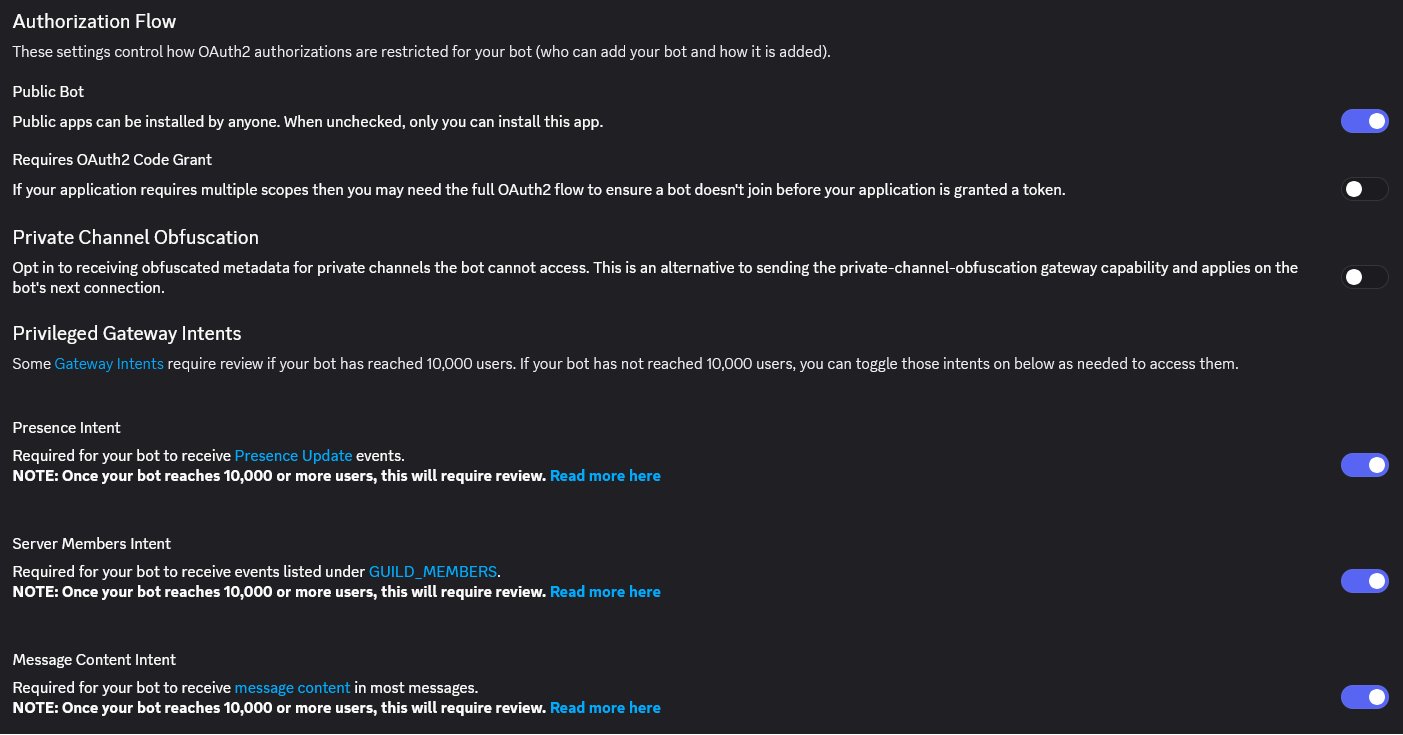
Bot page of your Discord app and enable the necessary intents below for your bot. This is required for the bot to function correctly within your server.6
Copy the Install Link
After assigning the necessary scopes and permissions, you can install the app in your Discord server.
On the same page as the permissions, you can copy the Install Link, and paste it into your browser. It should prompt you to go to Discord for further steps.
7
User or Server App Install
When you are in Discord it should pop up with a choice to either install it via your own Apps or a Server.Choose Add to Server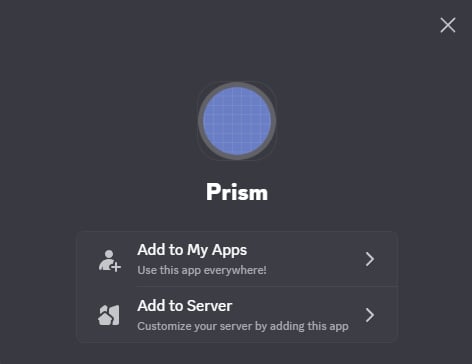
8
Choose Server to Install the App
After choosing to add the app to a server, you will be prompted to select the server where you want to install the app.
Choose the appropriate server from the dropdown list and click Authorize.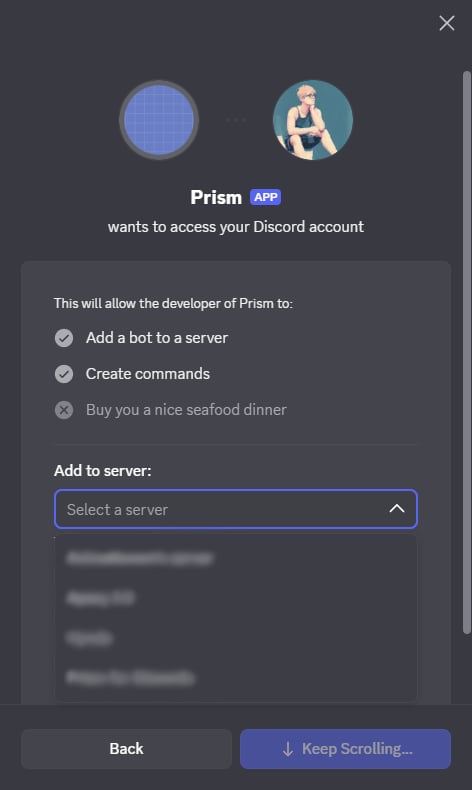
Prism Settings
Prism Settings
1
Obtain the App Token
Now that you have assigned your scopes and permissions and installed the app, you can go ahead and copy the Token from the
In order to get your token you will need to press the

Bot page.In order to get your token you will need to press the
Reset Token button below the Username.2
Enter the Token in Prism Settings
Open the Discord tab in Prism Settings window on either Project/Studio. Copy/Paste the App Token in the appropriate field.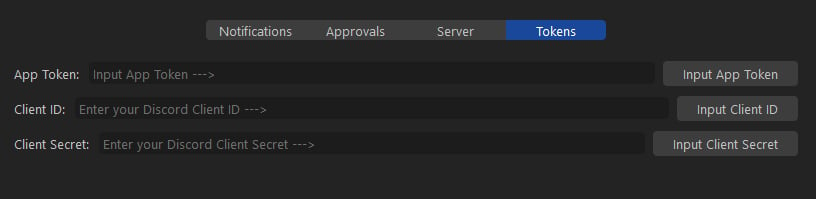
3
Copy the Client ID And Client Secret
Go to the 
OAuth2 page and copy the Client ID And Client Secret from the Client Information section at the top of the page.4
Enter the Client ID And Client Secret in Prism Settings
Open the Discord tab in Prism Settings window on either Project/Studio. Copy/Paste the Client ID and Client Secret in the appropriate fields.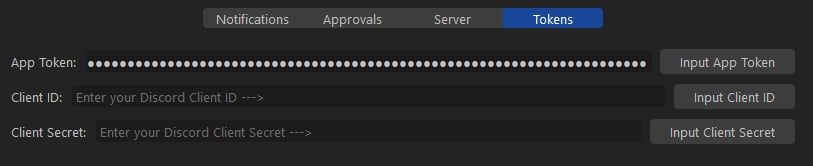
5
Enter your Guild Name
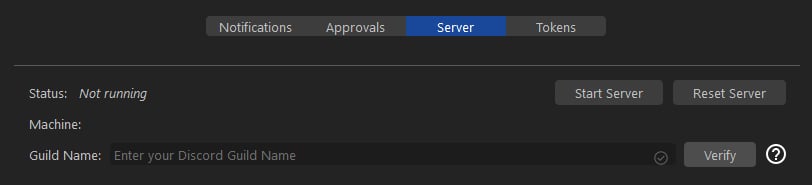
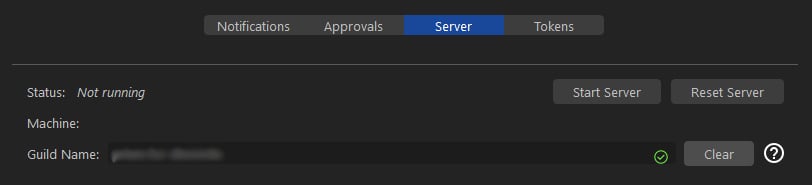
In the Server tab in Discord Prism Settings window on either Project/Studio. Enter the name of your Discord guild (server) in the appropriate field and verify it.