

Media Browser
In order to access the menu to publish via the Media Browser, you will need to open the context menu by Right-clicking over the thumbnail of the video or content you are trying to publish to Discord. At the bottom you will find the Publish to Discord option.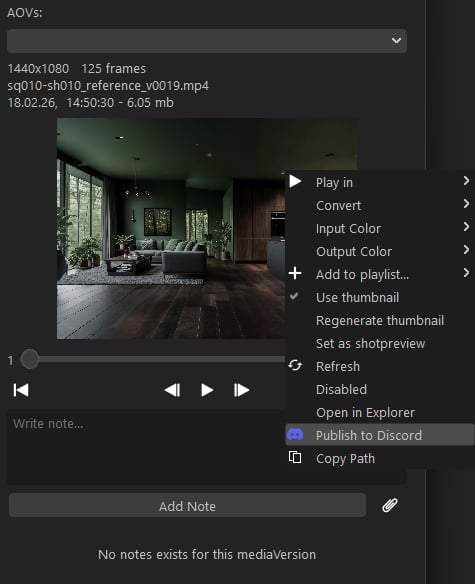
Additional Information
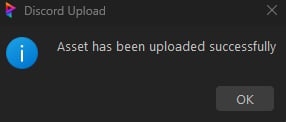
When you have selected the option to publish, you will be presented with a couple windows. The primary one will be the ‘Discord Publish Information’ window that which will allow you to leave additional comments.Status
If the Approvals options are enabled in the Studio Settings, you will be presented with Status radial options to allow you to select the status of the publish.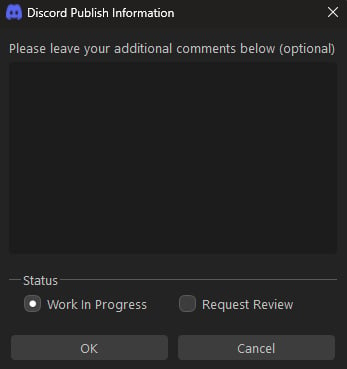
View in Discord
If you have published the version to Discord, we now give you the option to go directly to the post via the Media Browser. Just select the ‘View in Discord’ button in the context menu and it will take you to your post.Current Limitations
- Does not convert an image sequence to a video like it does if you are publishing from the State Manager.
- If you select an image sequence, it will only upload the first image. You don’t want to have a ton of posts flooding your channel. In the future, I might address this by doing an auto convert but we shall see if it’s necessary.