

Prism
Community Edition
Deprecated v2.1.4Installation Steps
Installation Steps
CLI
For a shorter method of installing the plugin, follow the steps below1
Terminal/Powershell
Open a Terminal/Powershell in your Prism plugin directory
2
Clone Repository
git clone https://github.com/fraktlfx/prism-slack.git Slack3
Install Requirements
pip install -r requirements.txt -t ./PythonLibsManual
For a more manual method of installation, follow the steps below1
Download
Download the plugin release package from the repository
2
Unzip
Unzip the folder (if needed)
3
Rename (Optional)
The top level folder must be called: Slack. Rename the folder if it’s needed.
4
Move
Move the plugin to the Prism plugins directory
5
Reload Prism
Restart/Reload Prism and the plugin should automatically appear in the plugin list enabled
Slack API’s
We did not include the Slack API’s in the repository to limit the size of it. You can either download the release package or you can download it on your own.If you chose to download it on your own, please follow the steps below to do so.1
Install Slack SDK
pip install slack_sdk2
Install Slack Bolt
pip install slack_bolt3
Locate Slack package install locations
pip show slack_sdk
pip show slack_bolt4
Copy/Move the packages
Copy/Move the now installed slack packages to the following folder:

{PRISM_PLUGIN_DIRECTORY}/Slack/PythonLibsStudio Edition
Installation Steps
Installation Steps
1
Download
You can download the plugin from the email you received from Keyforge upon purchase of the subscription/perpetual license. The download button is at the bottom of the email.
2
Unzip and Move
You’ll be downloading a bundle that comes with most operating systems. Unzip and move the version you need to your Prism plugins directory or your custom location.
3
Install Requirements
Windows
Windows
Run the
install_packages.bat file in order to install the required packages to make the Slack Studio Edition plugin work.We will make an attempt to locate your Python executable that comes bundled with Prism, but if we are not able to find it, we will ask you to input the path to it. We do this because we need to know what version of Prism
you are running in order to install the proper libraries.MacOS
MacOS
Run the
install_packages.command file in order to install the required packages to make the Slack Studio Edition plugin work.When installing on the mac, you will likely be hit with a quarantine message saying thatApple could not verify “install_packages.command” is free of malware that may harm your Mac or compromise your privacy.When trying to install by clicking on install_packages.command. To get the file to run, you need to then go into Settings -> Privacy & Security -> Scroll to the bottom and select “Open Anyway”.You can also open the file in a text editor to make sure that we aren’t putting anything malicious on your machine if you have security concerns.
Linux
Linux
Execute the
install_packages.desktop file in order to install the required packages to make the Slack Studio Edition plugin work.Compared with the Windows edition of the plugin, the Linux version is going to require some level interaction from the user. As we are installing libraries according to the Prism python executable, we need to
know where the location of your Prism installation resides. So when you run the script, it will ask you to input the path to your Prism installation, then we handle things from there.4
License the Plugin
Open Prism and the plugin should automatically prompt you to authenticate your license and enter your email used to purchase the subscription/perpetual license.
Slack
Slack Prism App
1
Use the Provided Manifest
Locate the
manifest.yml file in the Resources folder of the repository/plugin directory. This file simplifies the bot creation process.If you are unable to locate the file, you can expand the section below to see its contents based on the edition of the plugin.Community Edition Manifest
Community Edition Manifest
Deprecated v2.1.4
Studio Edition Manifest
Studio Edition Manifest
2
Create your Slack app
Go to the Your Apps page on the Slack API website. Follow the instructions for creating apps using manifests provided on this page:
Creating Apps using manifests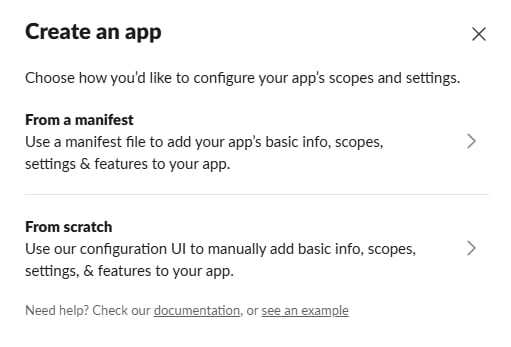
Creating Apps using manifests
3
Customize the App Icon
Once your app is create, navigate to the Basic Information page in the Slack API dashboard.
Under the Display Information section, upload an App Icon to personalize your app.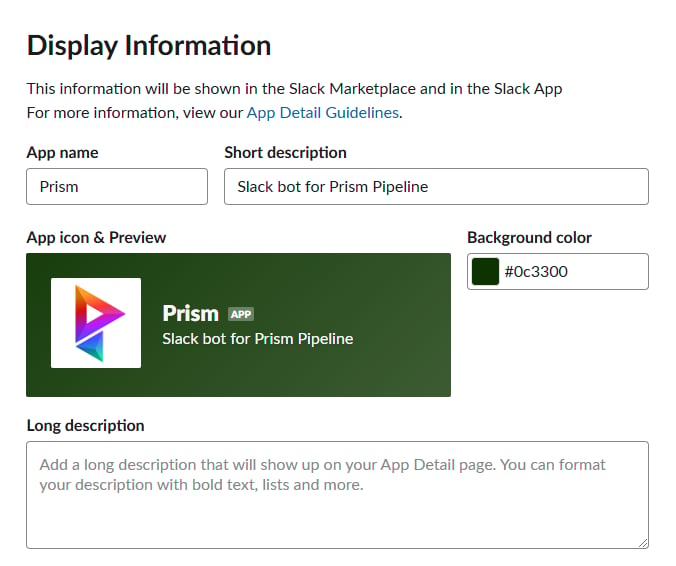
Under the Display Information section, upload an App Icon to personalize your app.
4
Install the App
In the left-hand menu, select the Install App section.
Install the app into your Slack workspace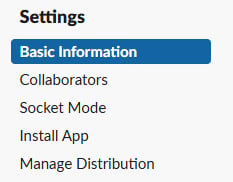
Install the app into your Slack workspace
5
Obtain your Client ID and Client Secret
Studio Edition
Go to the Basic Information page in the left-hand menu.
Copy the Client ID and Client Secret displayed on this page.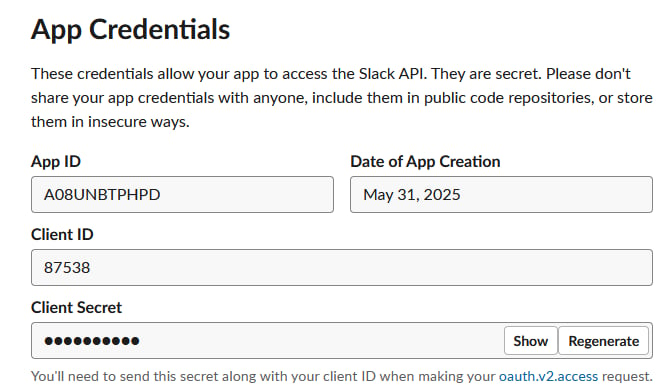
Go to the Basic Information page in the left-hand menu.
Copy the Client ID and Client Secret displayed on this page.
6
Enter Client ID and Client Secret in Prism Settings
Studio Edition
Open the Slack Project/Studio settings page in Prism. Paste the copied Client ID and Client Secret in the appropriate fields.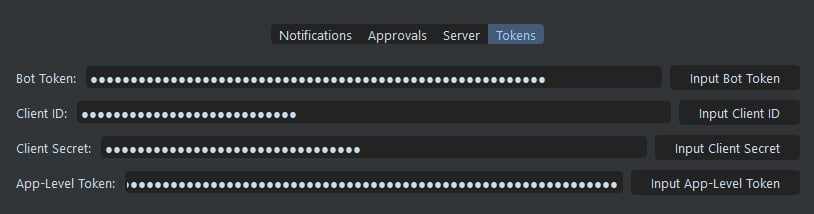
Open the Slack Project/Studio settings page in Prism. Paste the copied Client ID and Client Secret in the appropriate fields.
7
Obtain the Bot User OAuth Token
Go to the OAuth & Permissions page in the left-hand menu.
Copy the Bot User OAuth Token displayed on this page. It should start like this: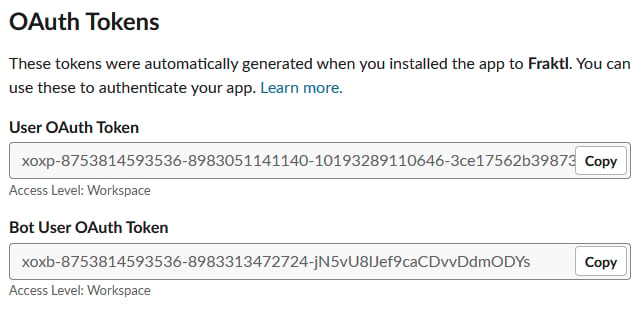
Copy the Bot User OAuth Token displayed on this page. It should start like this:
xoxb-8
Enter the token in Prism Settings
Open the Slack Project/Studio settings page in Prism. Paste the copied Bot User OAuth token in the appropriate field.
9
Obtain the Bot App-Level Token
Go to the Basic Information page in the left-hand menu.
Select the Write token to open a window that contains a token that starts with:
If you do not see a token, then generate the Write Token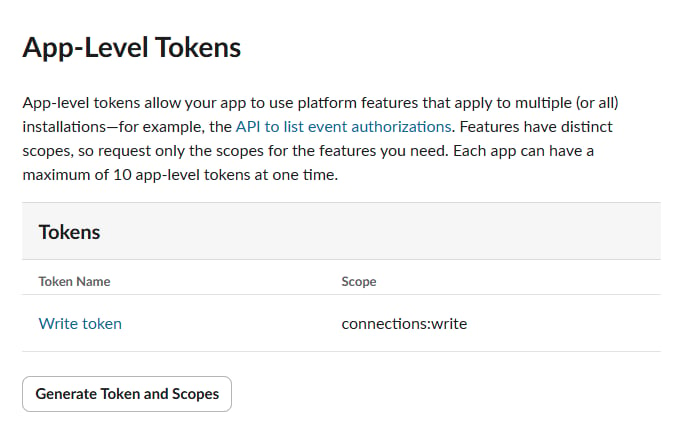
Select the Write token to open a window that contains a token that starts with:
xapp-If you do not see a token, then generate the Write Token
10
Enter App-Level Token
Open the Slack Project/Studio Settings page in Prism. Paste the copied App-Level Token into the appropriate field to complete the integration.
PRISM_STUDIO_PATH
A Prism environment variable that defines the location of the Studio configuration file. Because the Slack plugin configuration file is stored in the same directory by default, pointing this variable to the Studio config ensures the Slack config can be located automatically. This allows Prism+ and non-Prism+ machines to work together without running into missing Slack configuration issues.
PRISM_SLACK_CONFIG_PATH
A Slack plugin environment variable that will allow you to point to a custom location to store and look for the Slack configuration file. This is useful if you want to keep the Slack configuration separate from the Studio configuration or if you want to point to a shared location for the Slack config that all machines can access.