Overview
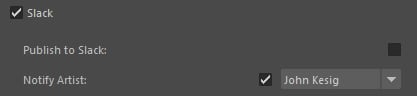
Below outlines the general publishing options that are currently available in the Slack plugin. In yourImageRender, Playblast, or Export states, you should now see the option to select the Slack checkbox to enable publishing to Slack or notifying an artist
of an incoming render.
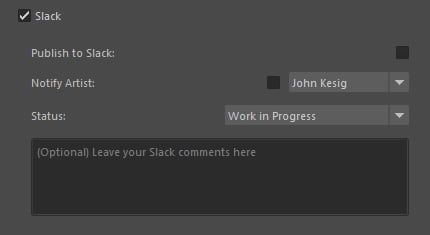
Render\Playblast
ImageRender State
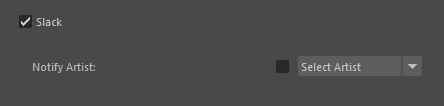
Export
Export State
Publishing to Slack
Selecting this option will allow youto upload your content directly to the Slack channel associated with the project.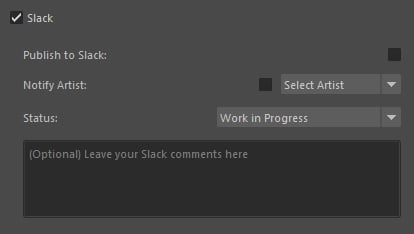
Notify Artist
This option will allow you to choose an artist to send a notification to, whether that be by channel, directly, or ephemerally.It is possible for the Slack options to lag a bit to populate because it’s trying to gather all of the users in the Slack channel.
preRender, prePlayblast, preExport callback. So it gets executed before everything else. If you want to know what these notifcations look like, go here:
Slack - Notifications
Status
If the Approvals options are enabled, Status will allow the artist to send their post with Approvals buttons. You can find more information on that here: Slack - Approvals Based on the status of the post, it will update the status in the local versions json file. It will mark as:ip/In Progress - If post is marked as Work in Progress
rev/To Review - If post is marked as Request Review
Conversion
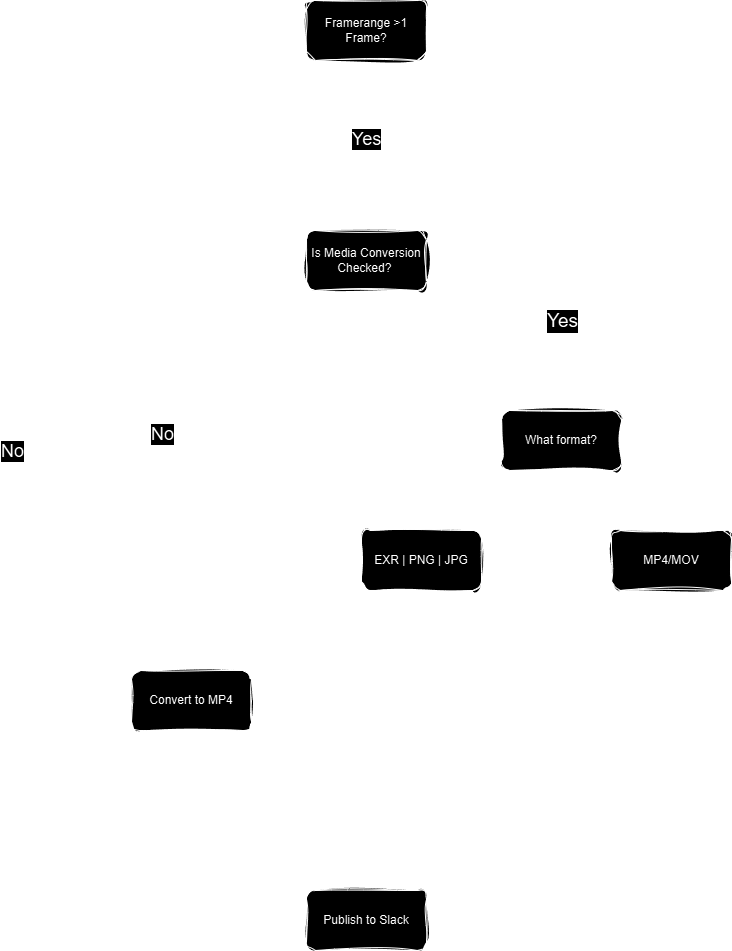
You are more than welcome to render out an Image Sequence directly from the State Manager and Publish to Slack, however there are a few things you need to know. When you render an image sequence, it will be automatically converted to an MP4 so that Slack doesn’t upload just the first frame, or potentially 10s of frames all at the same time. Follow the general chart below to figure out whether or not it will be converted.