

OAuth Bot Token
Token input is placed in the Studio tab if Studio enabled. If its not, then its placed in the Project tab. You will only be able to input the token, you won’t be able to access it from here. So no one could theoretically rip it out. The token is stored in a json file at the Studio Path location. Otherwise it’s stored in the Project Pipeline json.Notifications
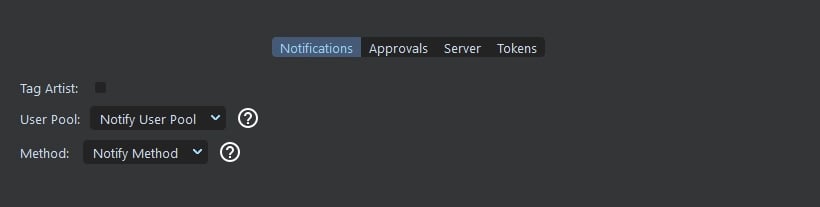
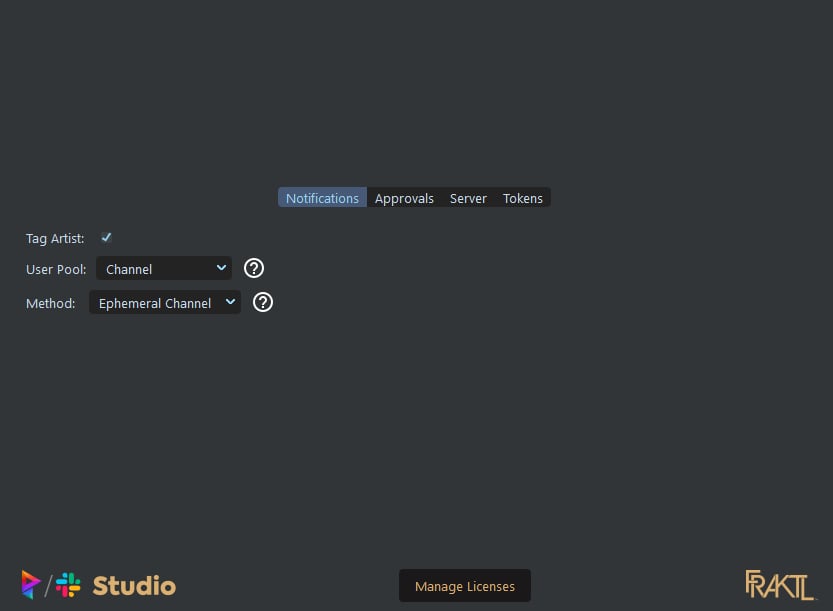
Tag Artist
Enable the functionality to tag the artist when a publish gets sent to Slack.User Pools
Channel
Draw from the users in the Slack Project ChannelStatus: Active
Studio
Draw from the users in the Studio plugin poolStatus: Inactive - No way of gathering information from users in the studio pool. Will probably write information to the
studio config in the future.
Method
Direct
Notify the selected user by Direct message
Ephemeral Direct
Notify the selected user in an ephemeral Direct message
Channel
Notify selected user in the Slack channel
Ephemeral Channel
Notify selected user in an ephemeral Channel message
Approvals
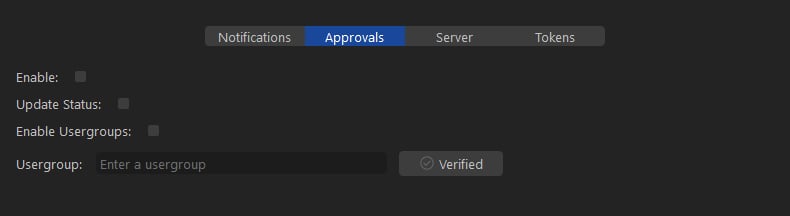
If you choose to enable the Approvals options, it will give the artists an additional prompt when making publishes through the State Manager or the Media Browser to allow them to mark a publish with a Status. You can see more information on that here: Slack - Approvals
Update Status If you enable this option, when an artist marks a publish with a status, it will update the status in the local versions json file. It will mark it as the following:
- ip/In Progress - If post is marked as Work in Progress
- rev/To Review - If post is marked as Request Review
Usergroups
This feature requires a subscription to Slack Pro or higher
Verify button. Prism will make a call to check
and see if the usergroup exists. If it does it will turn green and say that it has been verified. If not, it will not change.
If there are no changes, you can check the Prism Console to see whats going on.
C:\ProgramFiles\Prism2\Tools\prism_gui_with_console.batServer

- If the server is already running, it will not restart.
- If the server is not running locally or remotely, the Start Server button will be active, but starting it may fail.
Prism Tray
With this plugin, you are able to check the status of the server in the Prism Tray. Just open the context menu of the tray, navigate to the Slack menu and in it you will be provided with the following: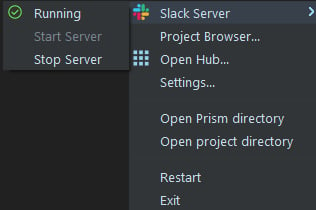
- ✅ Running
- 🚫 Not Running
The server will not start if it is running. However if you know it’s not running and can’t start it, you can navigate to the Prism Settings window and choose: Reset Server. You can also do this via command line by using this: reset_bolt_server_status