

The Slack Studio Edition plugin will consistently make a new validation check to ensure your license is valid.
It will not check for a non-gui process so it can be used on renderfarms and the console.
It will not check for a non-gui process so it can be used on renderfarms and the console.
Activation
When you have put Slack in your set of plugins, it will show up as unlicensed. A popup will appear asking you to enter your license key and your email that you used to purchase the subscription. These are important for two things. The License makes it so you can use the product, and the email is used to make it easier to manage your licenses.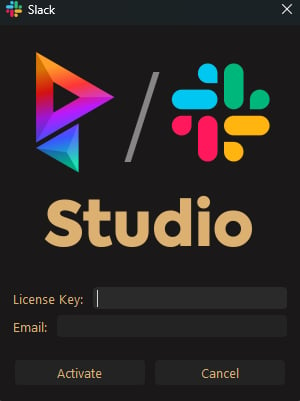
License Key Environment Variable
If you don’t want to pass around the license key or you don’t have the Studio plugin enabled, you can set thePRISM_SLACK_STUDIO_LICENSE_KEY environment variable to your license key and it will automatically validate your license on startup.
Management
You can manage your licenses at Keyforge by pressing the- License Management button on the sidebar here in the documentation
- Pressing the Slack option in the Project Browser on the top menu and selecting Manage License(s)
- Pressing the Manage License(s) button in the Slack Prism Settings window under Studio or Project
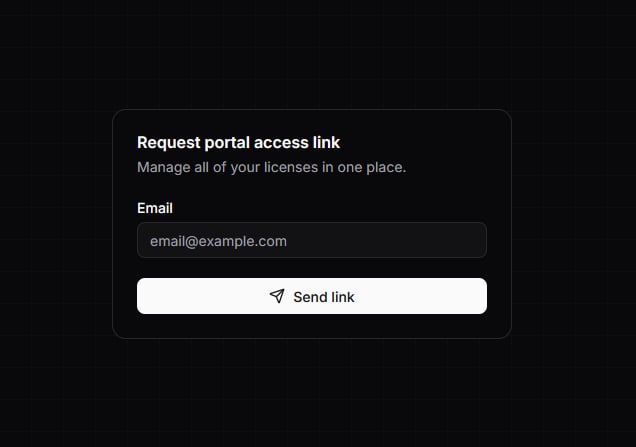
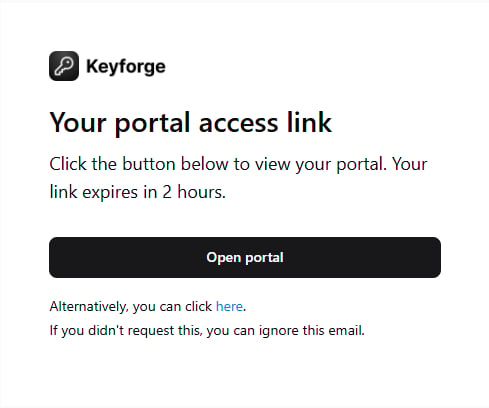
Page/Details
Once you are in the License Management page, you will see all of the products you are subscribed to from us.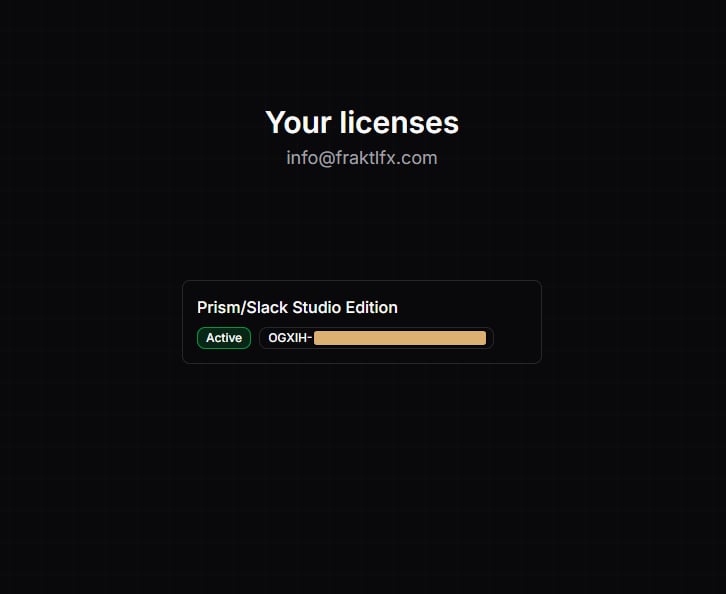
- License Key
- Subscription Count
- Devices
- Expiration Date
- Status
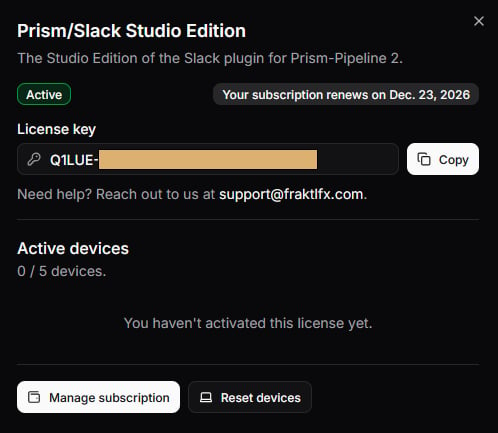
All changes that you make will made on your next billing cycle.
Errors
If your license is invalid for any reason, you will see a popup appear in Prism notifying you of the issue. Below are the potential issues you may face.- Expired License
- Invalid License Key
- Key has been revoked
- License limit reached
If you are having issues with getting all Slack windows showing correctly, you can restart Prism and it should work as normal